Skip to content

Connect to Tech

Technology services

CCBC offers a variety of tech resources from computer labs and printing services to digital campus hubs. Our Information Technology Services (ITS) team is here to help you make the most of these tech essentials.

What is the myCCBC portal?

The myCCBC student portal houses everything from academic resources and campus tools to important college and club announcements - all behind a single login. In myCCBC, you can readily access our featured applications such as:

  • SIMON Online Services: our online services platform where you can easily check financial aid, pay your bill, add or drop classes and more.
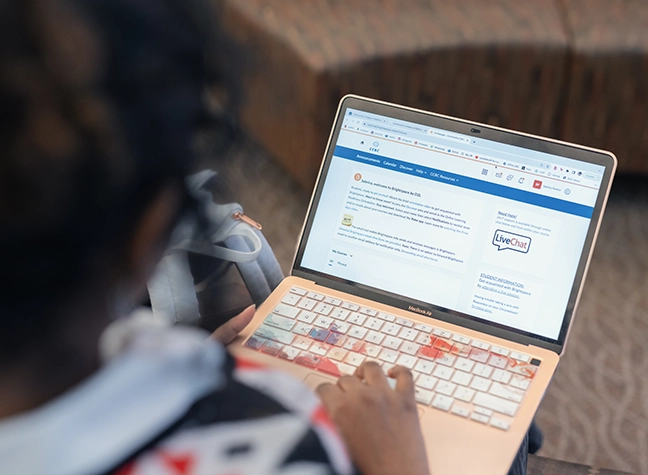
  • Brightspace: review course content, view grades and submit assignments through our learning management platform.

Need help recovering your CCBC login information?

Forgot your username or password? It happens to all of us. Follow the resources below to find your username, reset your password and get back into your CCBC accounts fast.

Managing your OneCard

A CCBC OneCard is your all-in-one student ID, library card and payment card. Follow the instructions below to learn more about getting, using and adding funds to your One Card. For more detailed guidance, please log in to myCCBC

Three ways to access your OneCard.

  • Physical Card: Please visit any campus Enrollment Services Center to retrieve a physical OneCard.
  • Desktop: Go to TouchNet and use your myCCBC username and password to access your OneCard. 
  • Mobile: Download the TouchNet OneCard mobile app. Follow the prompts to set up your account. Your OneCard username and myCCBC username will be the same. Need more help? Learn how to install OneCard mobile app

App_Store_Badge135x40.jpg

Your all-access pass to a range of CCBC services.

  • On-campus purchasing: Use your OneCard to buy food at campus cafeterias, purchase a pre-paid meal plan, buy materials at the CCBC bookstore and more. 
  • Take advantage of CCBC services: Use your OneCard to check out library materials, sign in for appointments and register for events, ride the CCBC shuttle and access fitness facilities

You and an authorized user (such as a parent) can add money to your OneCard.

Add "CCBC Bucks" to your OneCard for general spending or "CCBC Meals" for discounted prepaid meals. 

Using a credit card to add funds

  • Desktop: Go to your TouchNet account. Click "Add Funds," Select the balance (CCBC Bucks or Prepaid Meals) and enter your information.
  • Mobile: Open your TouchNet mobile app. Tap "Wallet," select “Bucks” or “Prepaid Meals” and "Add Funds." Tap “Add Funds” again and enter your information.

Using cash or check to add funds

Go to the Bursar's office at any Enrollment Services Center to pay via cash or check. Check payments are subject to a 5-business day hold.

Support Services

Whether you need help with your CCBC account or operating classroom technologies – ITS is here to support you. Our online Help Desk is available to students and employees 24/7. You can also use it to schedule an on-site appointment!